Can I Choose when I Want to Apply the Enhanced Option to My Transcript
If you are on the Growth or the Pro subscription to AutoScriptOne, you can switch from applying the enhanced feature to every transcript, to a setting that will allow you to choose when you want to take advantage this extra step.
Go to your Billing Account Details page and click "Details" on the AutoScriptOne card.
Click on the pencil icon next to the "Transcript Unlock Type", click on the down-arrow, and select "Session Text". Click Save when done.
Accessing your Transcript
After you have completed a recording session and are ready to access the transcript, follow these steps.
Open the transcript by clicking on the "Start editing in AutoScript" button to open the transcript in AutoScript Desktop Editor.
When the job opens in ASD and asks for the job name, change the name of the job to add Session Text to the end so that you know which version is which later.
Apply the "Layout" as you normally would.
Do not make any edits to the job. Click on the "X" to close ASD, and select "Close without Saving".
This will result in a saved copy of the transcript local on your computer, before applying enhanced, but no saved version in the job details page.
Now, click on the "Apply AI-Enhanced" button back in the job details page.
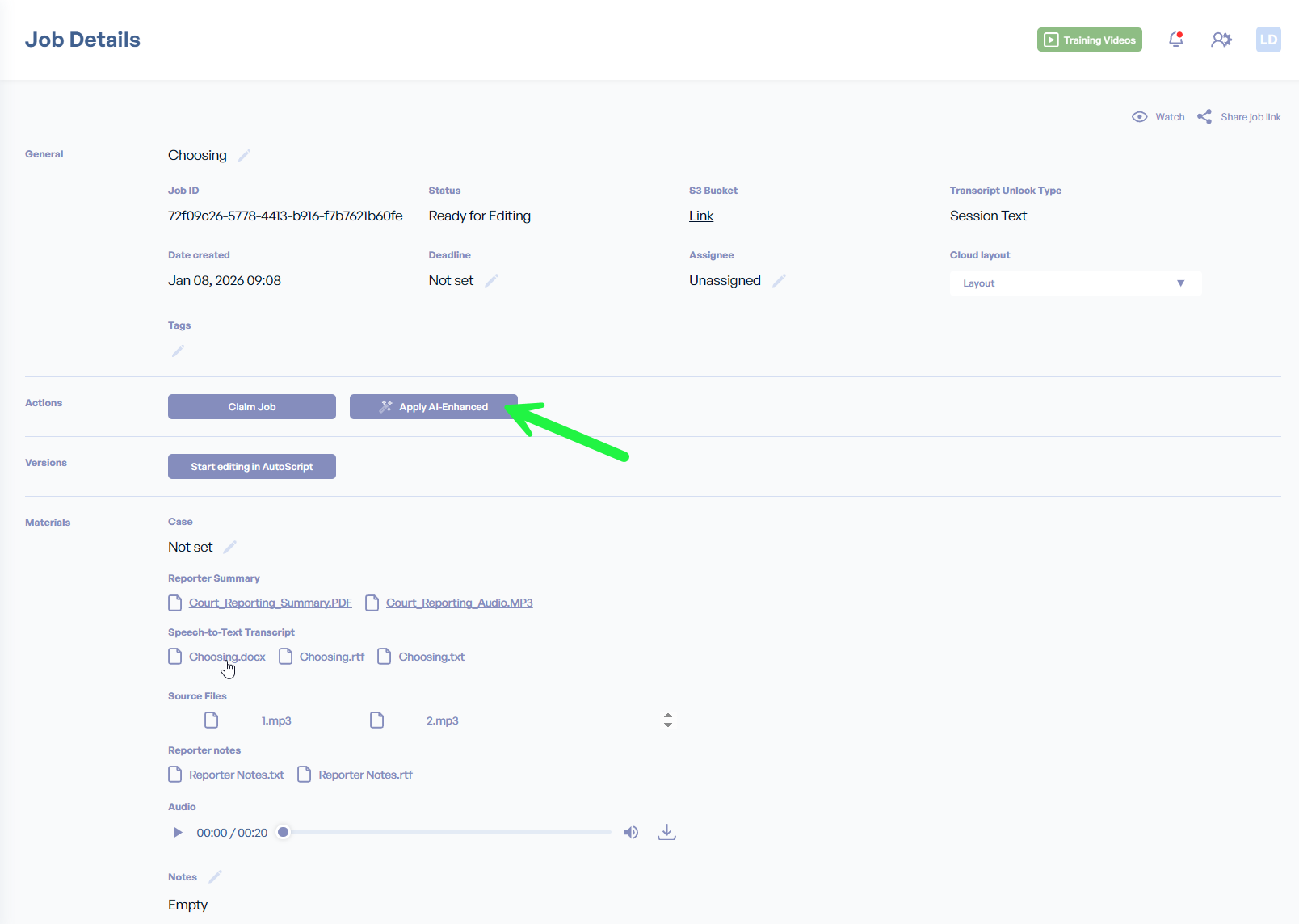
The job status will return to "Processing". When the enhancement process has completed, the job status will return to "Ready for Editing".
Open the job again, by clicking on the "Start Editing in AutoScript" button.
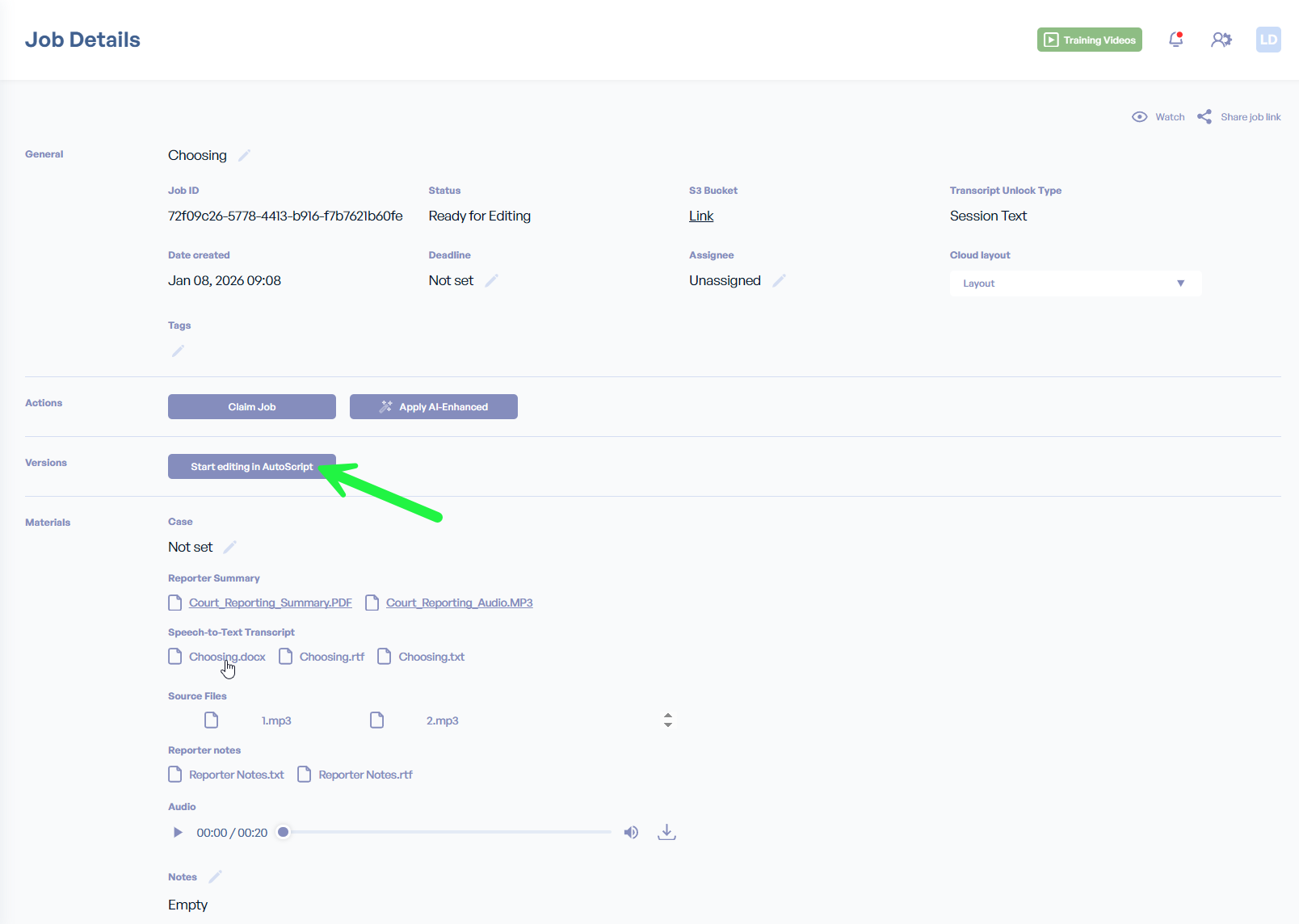
This time when the job is opening in AutoScript Desktop Editor, add "Enhanced" to the end of the job name.
And apply your normal Layout.
The result is two versions of the transcript in AutoScript Desktop Editor that you can review and decide which is best for you.
| Note - Applying enhanced cannot be undone. And, you cannot apply the enhanced option after you have created a version of the transcript. |