My ASOne Flex Job is Locked
Accessing the files from an ASOne Flex recorded session
If you are in the 14-day free trial period of your ASOne Flex subscription, you are experiencing the full features of ASOne. As a result, to access your files, you will click on the job name, and you will have access to the following:
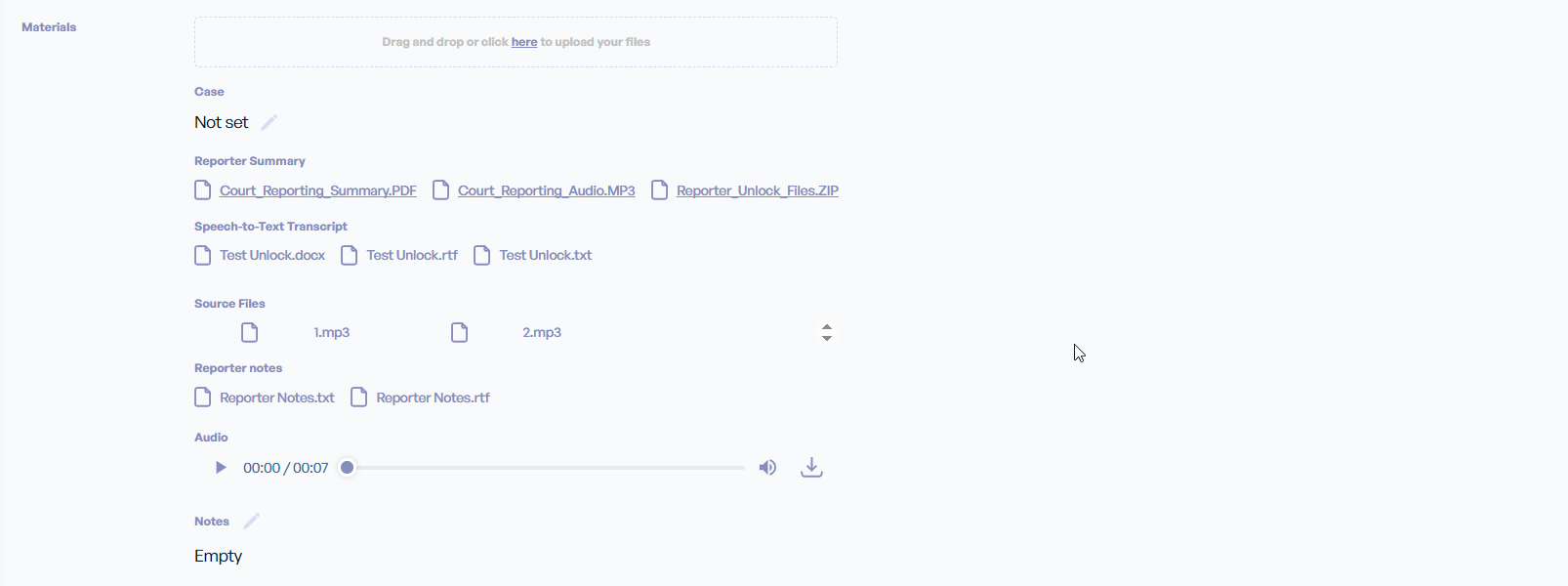
- Court Reporting Summary - This is an AI-generated turn-by-turn summary of what was said during the recording session. We do not guarantee 100% accuracy of this AI-generated summary, as nothing can fully replace a person in the room.
- Court Reporting Audio - This is a mixed-down single-channel MP3 audio file of your recording session.
- Reporter Unlock Files - This is a convenient zip file containing all material files for your convenience.
- Speech-to-Text Transcript - this is a rough-draft transcript of the recording session. This is only available during the 14-day trial period.
- Source Files - These are your individual channels of recorded audio. These are playable in our free transcription player: https://app.legalplayer.com/
- Reporter Notes - These are your user annotations from the recording session.
If your 14-day free trial period of ASOne Flex has ended, you will access your files directly from the job list by clicking on the Unlock button. There is no fee for accessing your files. The only charge would be if you wanted to generate the speech-to-text transcript from your recorded audio.
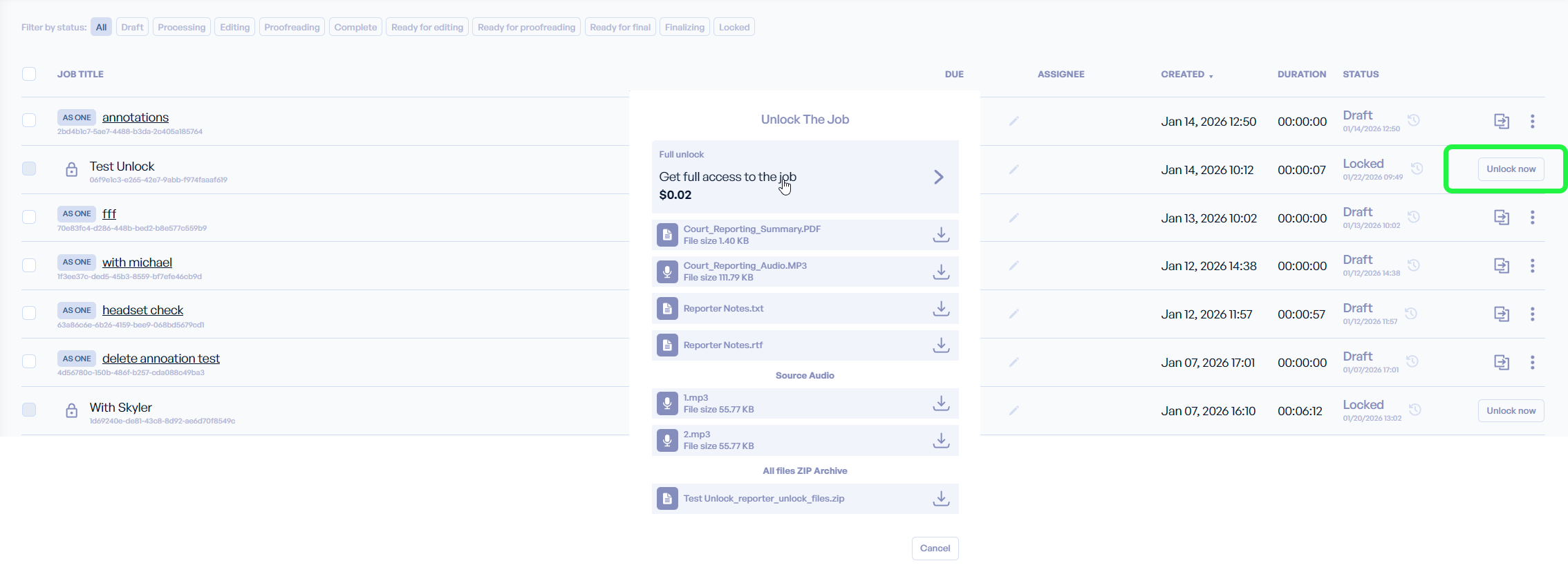
- Get full access to the job - This is a feature to produce the rough-draft transcript. This is the only item in the list that would incur an extra charge.
- Court Reporting Summary - This is an AI-generated turn-by-turn summary of what was said during the recording session. We do not guarantee 100% accuracy of this AI-generated summary, as nothing can fully replace a person in the room.
- Court Reporting Audio - This is a mixed-down single-channel MP3 audio file of your recording session.
- Reporter Notes - These are your user annotations from the recording session.
- Source Files - These are your individual channels of recorded audio. These are playable in our free transcription player: https://app.legalplayer.com/
- All files Zip Archive - This is a convenient zip file containing all material files for your convenience.