New Zoom Third-party Authorization
AutoScriptOne Zoom Integration Setup - July 8, 2026
Zoom now requires users to explicitly authorize third-party applications before they can access meeting data. As a result, AutoScriptOne must be connected to your Zoom account through a one-time authorization process before Zoom recordings can begin.
Step 1:
Go to https://www.zoom.com/ and log into your personal Zoom account. Keep this browser open and logged in while connecting AutoScriptOne.
Note: Your profile picture for Zoom will be used for “Reporter Backup” in the Zoom meetings if you have one assigned. It is recommended to: 1) Have no picture, 2) Use a company logo, or 3) Use a professional picture. If you don't have a picture, it will continue to show “Reporter Backup” as a black box with white letters that says “Reporter Backup”.
Step 2:
Launch AutoScriptOne and sign in. Click “Start a Recording Session” and then click the “Zoom” recording Option.
Step 3:
On the AutoScriptOne Zoom Job setup screen, you will click “Connect to Zoom”.
Step 4:
AS1 will prompt a message letting you know that the Zoom browser has initiated authorization.
AS1 will prompt a message letting you know that the Zoom browser has initiated authorization.
Step 5:
Your web browser will automatically launch the Zoom authentication page. You will have to check the box for “Allow this app to use my shared access permissions” and then click “Allow”.
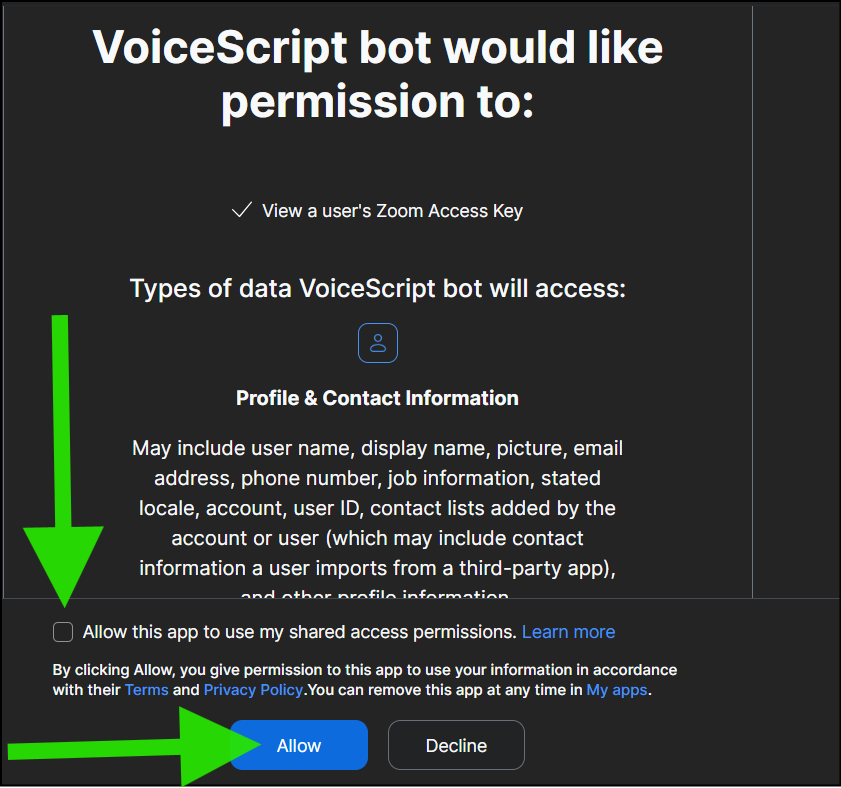
Your web browser will automatically launch the Zoom authentication page. You will have to check the box for “Allow this app to use my shared access permissions” and then click “Allow”.
Step 6:
AutoScriptOne will update with “Zoom account 1” as the connected Zoom authentication.
Step 7:
IMPORTANT NOTE: If “Reporter Backup” joins the Zoom meeting as a “Co-host”, you will have to open your Zoom participants list. Then click the 3 dots next to “Reporter Backup” and remove as Co-host, click the 3 dots again and “Allow to record to computer”. This will allow the bot to connect if the Zoom settings for the organization are set up for the bot to adopt co-host rights upon entry.
Step 8:
You will now be able to connect AutoScriptOne to Zoom following the same steps you have done in the past. Don't forget to make sure your microphone is unmuted.
If you need additional guidance for the regular Zoom recording steps, please refer to our help articles: